SCModbus Report — Cyclic Logger & PDF Report Generator
A dark-theme desktop application for continuously reading Modbus TCP registers, recording every measurement to CSV, Excel, or a database, and automatically generating a PDF report per production lot — with zero manual intervention. Built for industrial environments where scales, meters, and PLCs expose data over Ethernet.
Single license • 72h email support response • Support included for 1 year

What is SCModbus Report?
SCModbus Report automates the full data-acquisition loop for Modbus TCP devices: it polls your devices on a configurable interval, saves every reading, and generates print-ready PDF reports branded with your company details — all without a line of code or manual export.
Monitor Tab: Live Acquisition & PDF Generation
The Monitor tab is the operational heart of the application. Everything the operator needs — lot management, live device status, data table, and report generation — is here on one screen.
Production Lot Tracking
A free-text field identifies the active production lot. Every reading written to CSV or database carries this identifier, and it becomes the filename of the generated PDF.
- Default lot at startup:
Lot.0001 - All CSV and database records tagged with the lot
- Lot name used as the PDF report filename
- Change lot at any time without stopping polling

Modbus Reception Status Panel
A dedicated panel shows a tab for each configured device. For every register: name, last value, unit of measure, and connection status — all updated automatically at each polling cycle.
- One tab per device, live register values
- Connection status per device (connected / error)
- Automatic reconnect on next poll cycle after failure
- Background polling thread — UI never freezes

Readings Table
All captured values are displayed in a scrollable table loaded from data/letture.csv. The table refreshes automatically whenever the file changes and shows the most recent 200 records.
- Columns: Timestamp, Device, Register, Value, Unit, Lot
- Delete individual rows directly from the table
- Auto-refresh on file change (mtime detection)
- Shows up to 200 most recent records

Report & Action Buttons
All report actions are one click away, arranged in a clear toolbar.
Generate PDF Report
Creates a branded PDF for the current lot using all readings in the CSV. Disabled when no device with registers is configured.
Multi-Lot Report
Opens a dialog to select multiple lots and generates a single consolidated PDF summary covering all selected lots at once.


Sends the last generated PDF to the configured printer. Enabled only after a PDF has been generated in the current session.
Open Report Folder
Opens the PDF output folder in Windows Explorer with one click — no need to navigate the file system manually.


Refresh
Forces an immediate reload of the readings table from the CSV file, useful after external edits or manual imports.
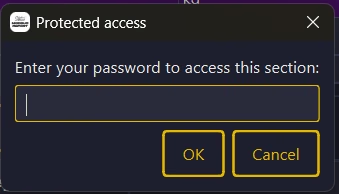
Protected Access: Admin Password & Session
Configuration, Settings, Backup, and Database tabs are locked behind an administrator password. The session remains open for 2 hours and can be terminated manually with the Logoff button.
Two-State Navigation
When logged out, the tab bar shows only the Monitor tab. After a successful login, all five tabs become visible and accessible. The current login state is always displayed at a glance.
- Default password:
ModbusReport(change on first use) - Session valid for 2 hours from login
- Manual logoff button always available
- Password changeable from the Settings tab
Configuration Tab: Devices & Registers
Add as many Modbus TCP devices as needed and define exactly which registers to poll from each one. Import and export configurations as Excel files for easy reuse across installations.
Add, Edit & Test Devices
The left list shows all configured devices. Selecting one loads its settings on the right: name, IP address, TCP port, Slave ID, and active state. A one-click connection test verifies the device before saving.
- Name, IP, Port (default 502), Slave ID (0–247)
- Enable / disable devices without deleting them
- 2-second TCP + Modbus response test per device
- Changes auto-saved when switching to another device

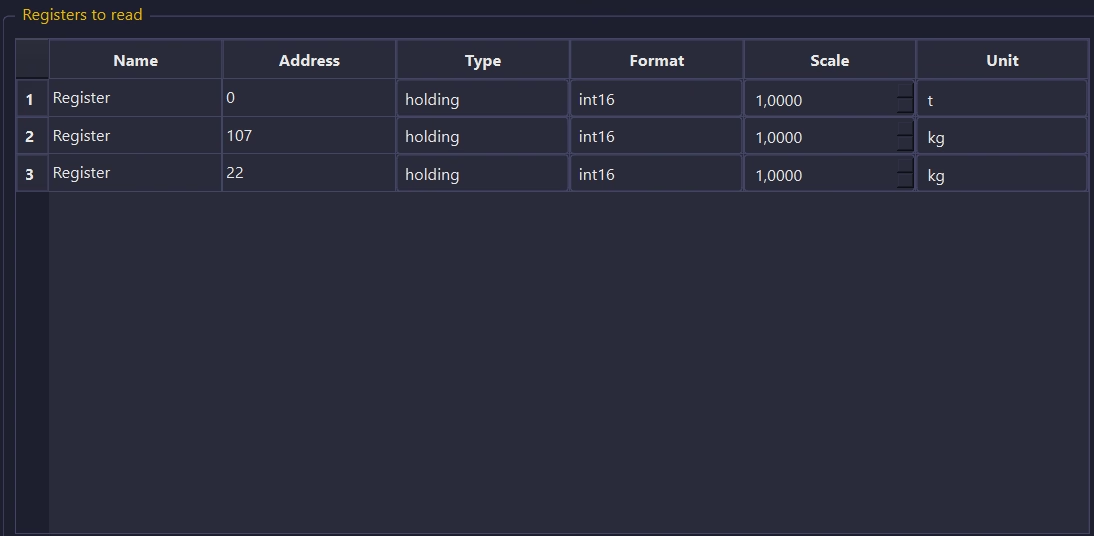
Register Mapping Per Device
For each device, define any number of registers with their name, Modbus address, register type, data format, scaling factor, and unit. These drive the polling loop and appear in every CSV row, database record, and PDF table.
- Register types:
holding,input - Formats:
int16,uint16,int32,float32 - Scale multiplier applied before saving (e.g.
0.001) - Unit label shown in PDF and CSV (e.g.
kg)
Excel Import & Export
Export the entire device and register list to an Excel file for documentation or backup. Re-import it on another machine to replicate the configuration in seconds — no manual re-entry needed.
- Export all devices to
.xlsxwith one click - Import replaces current configuration entirely
- Ideal for deploying to multiple workstations

Settings Tab: Full Control Over Behaviour
Every application parameter is configured here and saved automatically — no save button needed. Covers PDF branding, print behaviour, polling interval, language, and admin password management.
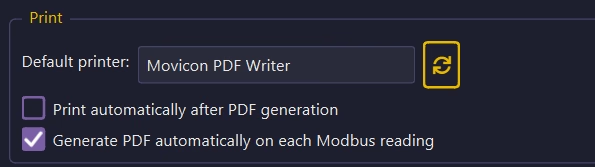
Print Settings & Auto-Generation
Select the target printer from the system list, or leave it empty to prompt the dialog on each print. Enable automatic PDF regeneration on every polling cycle and automatic printing after generation.
- Printer selector (system list or dialog fallback)
- Auto-print immediately after PDF generation
- Auto-generate PDF on every valid Modbus read
- Custom PDF output folder (default:
reports/)
Daily Report & Excel Storage
Schedule a daily summary report to print automatically at a configurable time. Optionally save every reading as an Excel file alongside the CSV — useful for teams that work in spreadsheets.
- Daily auto-print at a configurable HH:MM time
- Summary covers all lots logged that day
- Parallel Excel (
.xlsx) storage per reading - Time checked every minute — no missed prints

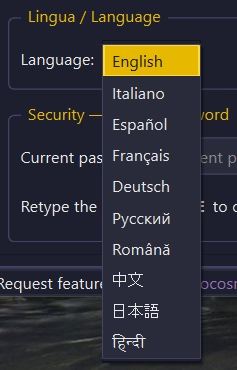
10 Interface Languages
Switch the interface language from the Settings tab. The new language takes effect at the next application launch. All UI labels, error messages, and button text are fully translated.
- English, Italiano, Español, Français, Deutsch
- Русский, Română, 中文, 日本語, हिन्दी
- Language applied on next application restart
Backup Tab: Automatic File Replication
Protect your PDF reports and CSV data by automatically copying them to up to three local or network destinations at a configurable interval.
Scheduled Copy to Multiple Destinations
Define up to three target folders — local drives, USB, or shared network paths — and set the copy interval (1–1440 minutes). Choose to copy PDF reports, the CSV file, or both.
- Up to 3 destination folders (local or network)
- Copy interval: 1 to 1440 minutes
- Selective: PDFs only, CSV only, or both
- Manual “Run now” button always available
- Scrollable log of the last 500 backup events
- Export log to
.txtfor auditing

Database Tab: Direct DB Write on Every Reading
Connect to your existing database infrastructure and have every Modbus reading inserted automatically alongside the CSV. MySQL, SQL Server, PostgreSQL, and SQLite are all supported.
Four Database Engines
Select the database type and fill in the connection parameters. A built-in test button checks the connection before you save. For SQLite, just specify a file path — the file is created automatically if it does not exist.
- MySQL (port 3306), SQL Server (1433), PostgreSQL (5432)
- SQLite — file-based, no server required
- One-click connection test with instant feedback
- SQL Server requires ODBC Driver 17 or 18 installed
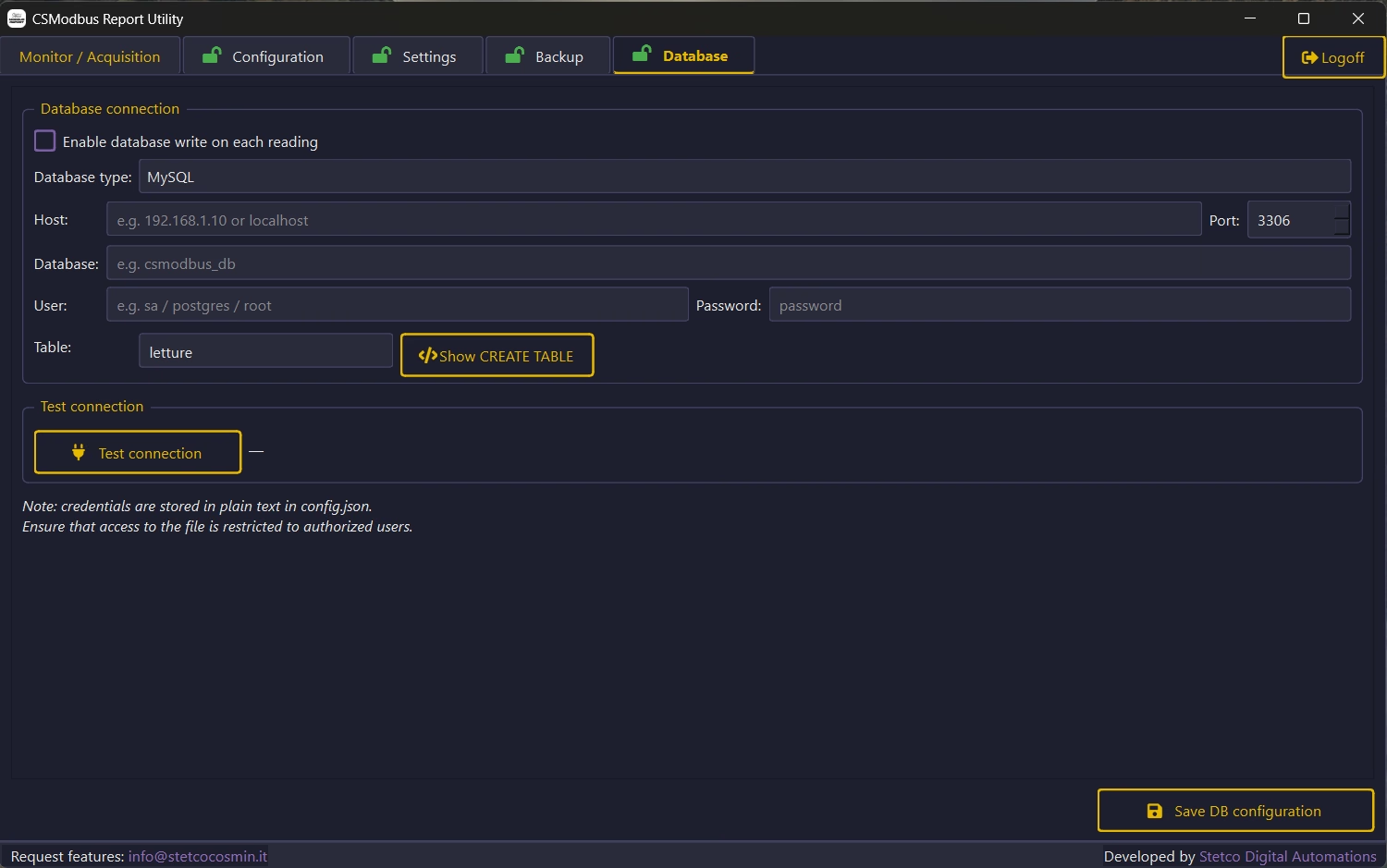
Auto-Generated CREATE TABLE
Click “Show CREATE TABLE” to get the exact SQL statement tailored to the selected database engine. Copy it to your clipboard and run it in your DB client — the table is ready in seconds.
- Dialect-aware SQL (MySQL, T-SQL, PgSQL, SQLite)
- Fields:
id,timestamp,dispositivo,registro,valore,unita,lotto - One-click copy to clipboard
- Table auto-created for SQLite on first write
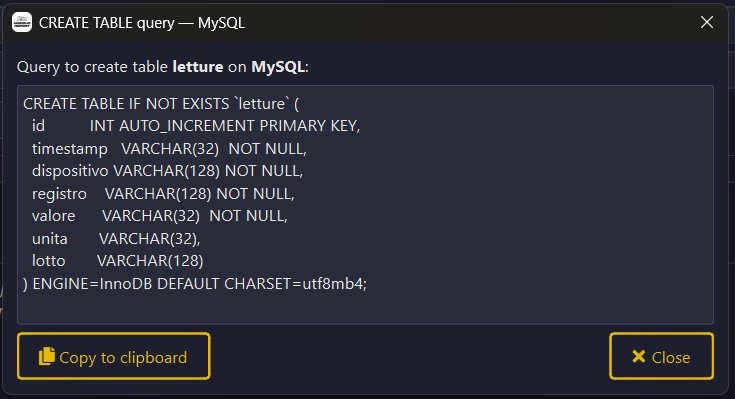
Database Record Schema
Every reading inserts one row with seven fields.
| Column | Type | Description |
|---|---|---|
id |
Auto-increment PK | Unique row identifier |
timestamp |
String (ISO 8601) | Date and time of the reading |
dispositivo |
String | Name of the Modbus device |
registro |
String | Name of the register as configured |
valore |
String | Numeric value after scale applied |
unita |
String | Unit of measure (e.g. kg) |
lotto |
String | Active production lot identifier |
Interface Gallery

Logged-Out Tab Bar
When no admin session is active, only the Monitor tab is visible. All protected tabs are hidden until a valid password is entered, keeping the interface clean for operators.

Full Tab Bar After Login
After a successful admin login, all five tabs become accessible: Monitor, Configuration, Settings, Backup, and Database — with the active tab clearly highlighted.

Configuration Tab Overview
The full configuration screen: device list on the left, connection settings on the right, and the register mapping table at the bottom — everything in a single scrollable view.

Add & Remove Devices
Dedicated buttons for adding a new device with defaults and removing the selected one (with a confirmation dialog). Device changes are preserved automatically when switching selection.

Register Row Management
Add and remove register rows from the current device’s mapping table with dedicated buttons. Each new row pre-fills with sensible defaults to speed up configuration.

Slave ID Configuration
The Slave ID field (0–247) allows precise addressing for multi-drop Modbus networks where multiple devices share the same TCP connection through a gateway.
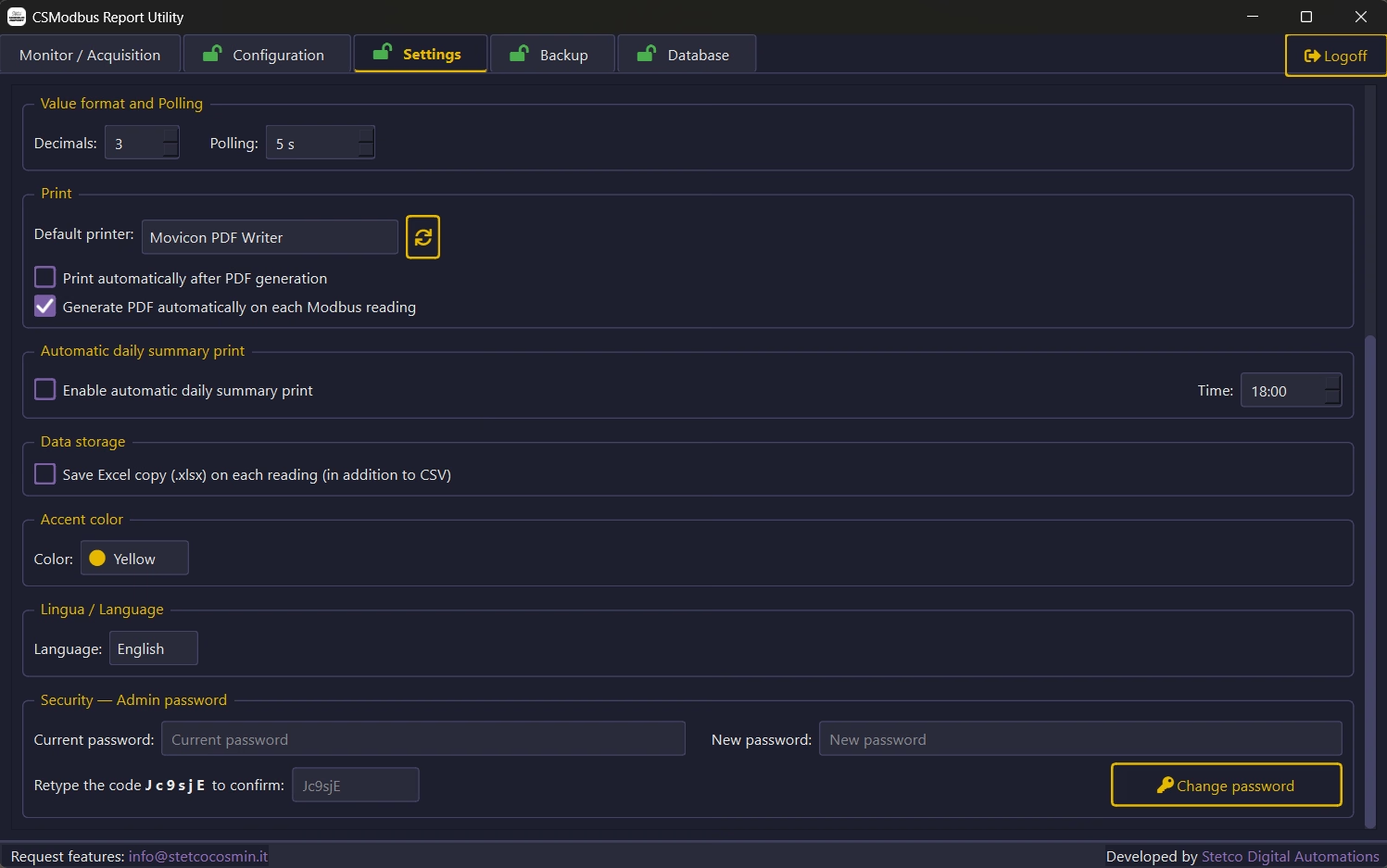
Full Settings Overview
All configurable parameters on one screen: company details for PDF headers, polling interval, decimal places, print options, daily scheduler, Excel storage, accent colour, language, and admin password.
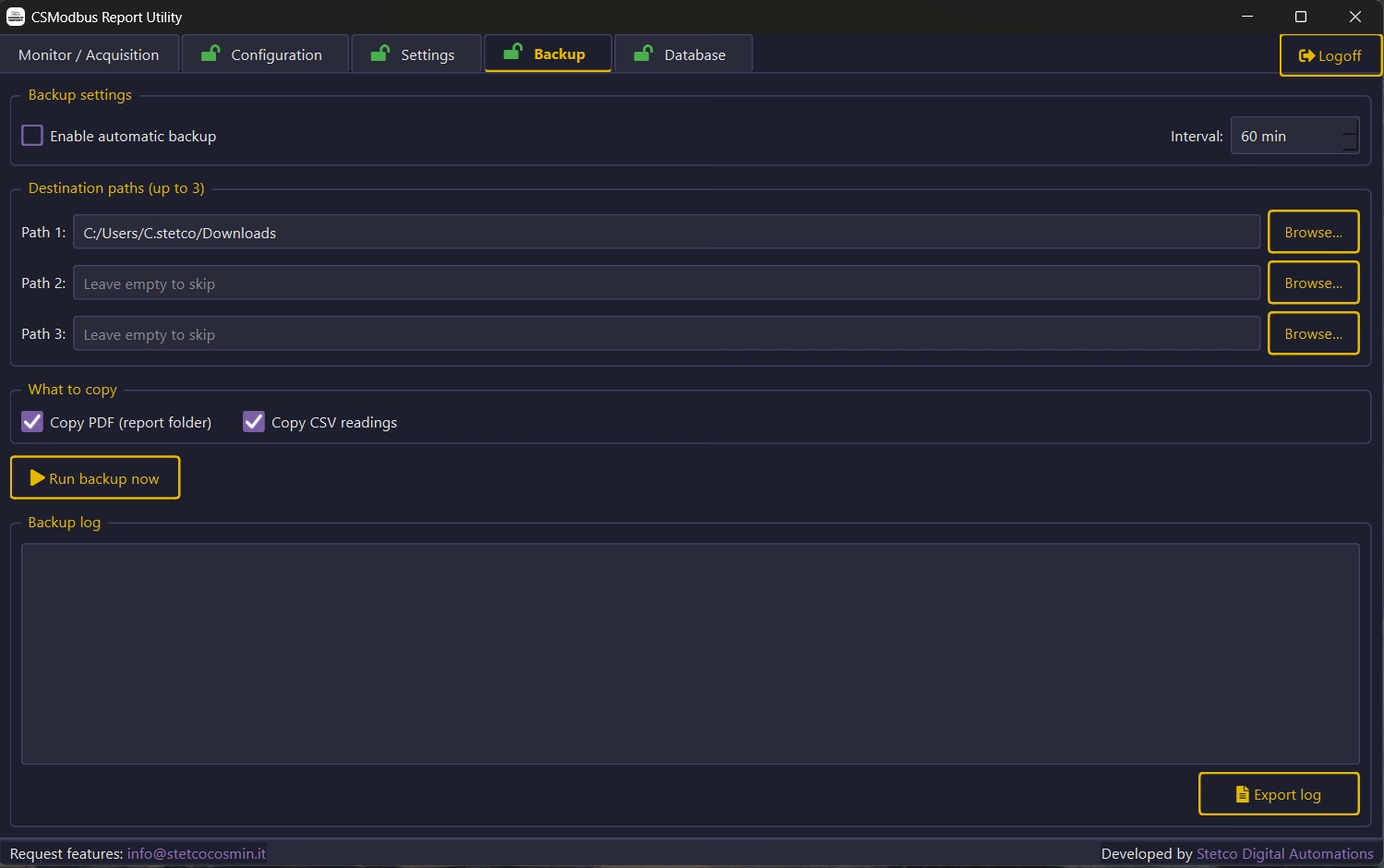
Backup Tab Overview
The full backup screen: enable toggle, interval selector, three destination path fields, content checkboxes, manual-run and export-log buttons, and the live event log below.
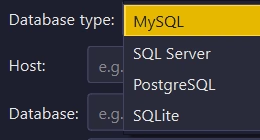
Database Engine Selector
A single dropdown switches between MySQL, SQL Server, PostgreSQL, and SQLite. Selecting each engine automatically shows or hides the relevant connection fields (host, port, credentials vs. file path).
Common Use Cases
From production-floor weight logging to multi-machine quality reporting, SCModbus Report adapts to any industrial acquisition workflow.
.xlsx file updated at every reading, without any extra export steps.Need a Custom Industrial Data Logger?
SCModbus Report is a real-world example of how Modbus TCP acquisition, structured data storage, and automatic PDF reporting can be packaged into a single production-ready desktop tool. Let’s build yours.